Extension Installation Guide
Learn how to manually install the MeowLoad browser extension on Chrome, Edge, or any Chromium-based browser. Follow the step-by-step guide to enable Developer Mode, import the extension package, and pin it for quick access.
- Step 1
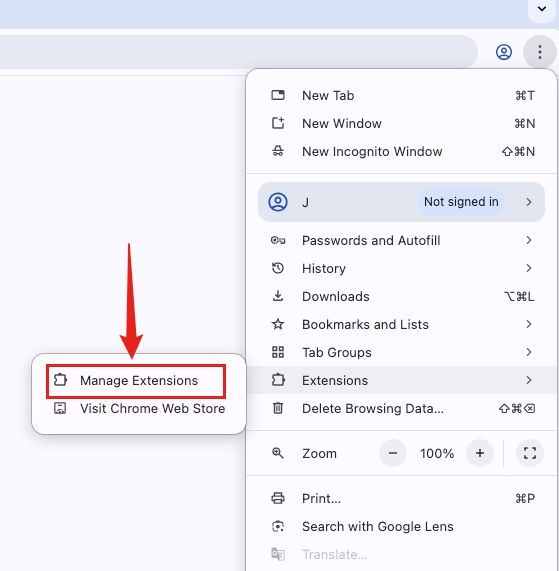
Open the "Manage Extensions" page
Click the menu button (⋮) in the upper-right corner of your browser and select "Extensions", "Manage Extensions", or a similar option depending on your browser.
- Step 2
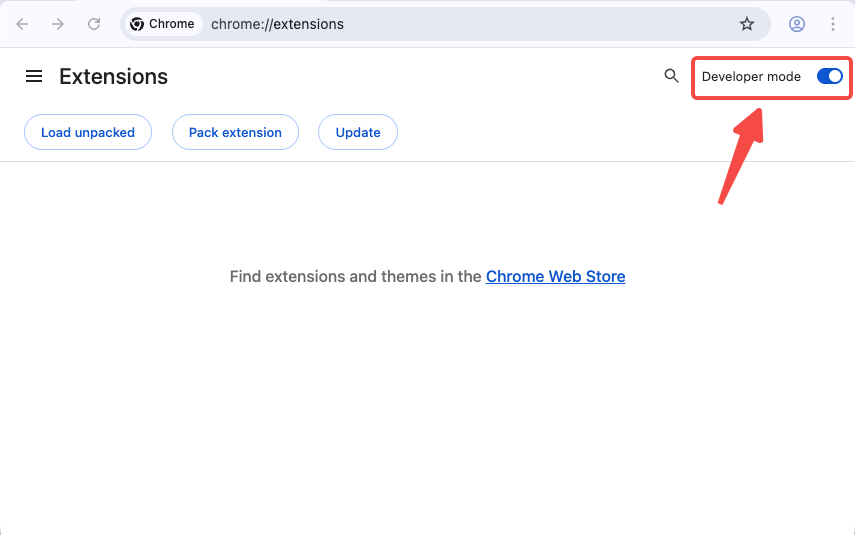
Enable "Developer mode" on the Extensions page
On the Extensions page, toggle the "Developer mode" switch in the upper-right corner to turn it on.
- Step 3
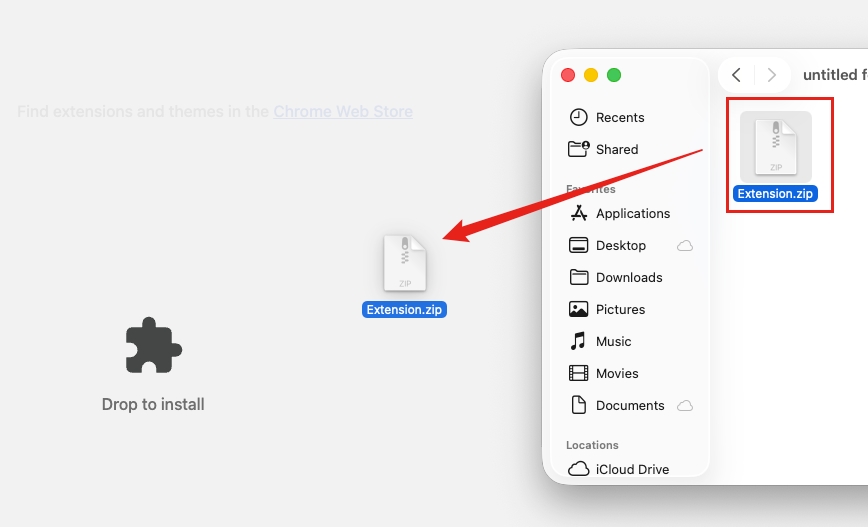
Drag the extension package into the page to install
Drag the downloaded extension ZIP file into the Extensions page. Your browser will automatically detect it and prompt you to complete the installation.
- Step 4
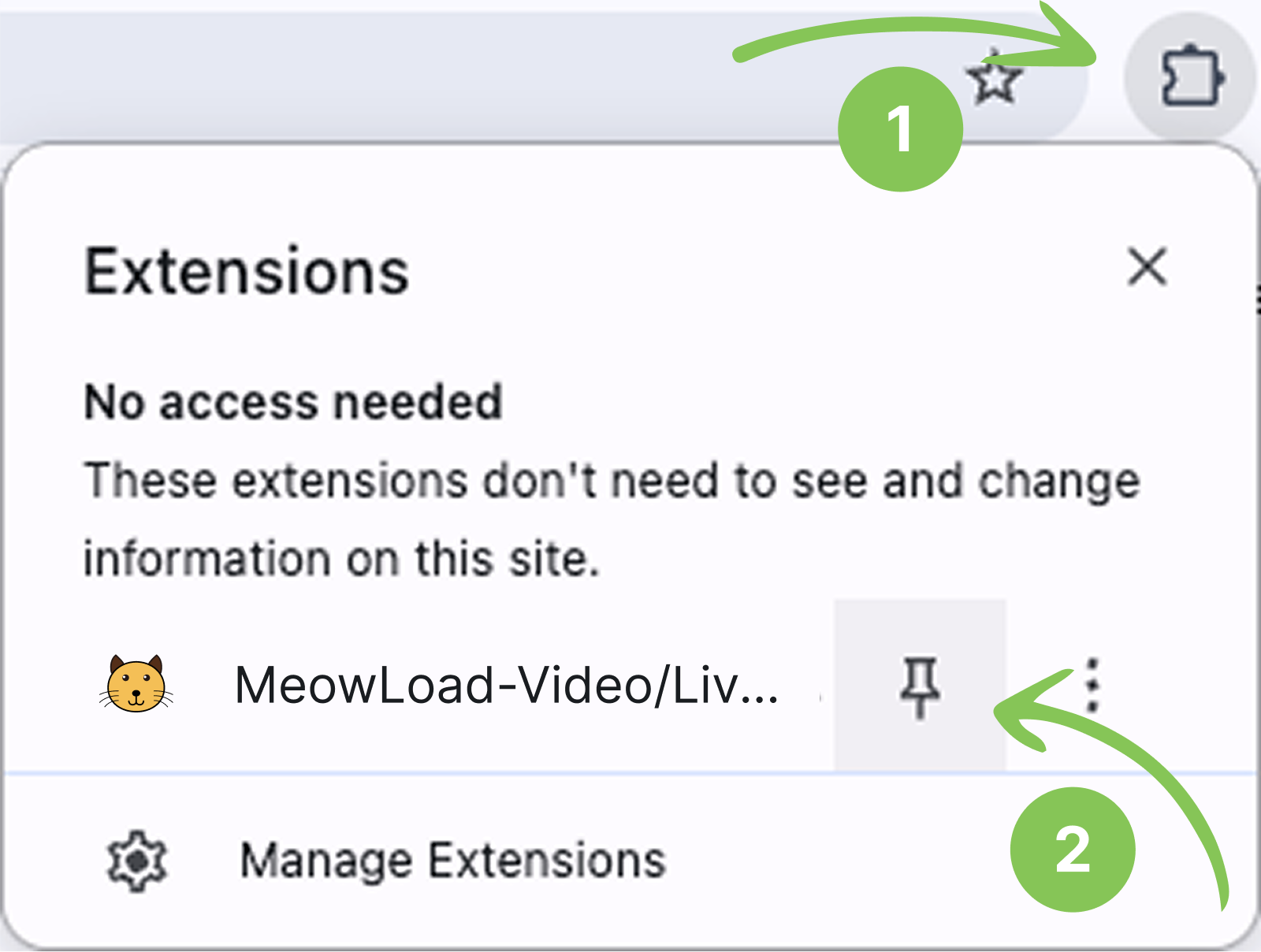
Pin the extension for quick access
Click the extensions button in the upper-right corner of the browser, find the MeowLoad extension in the list, and click the "Pin" icon to keep it visible on the toolbar.
Frequently asked questions
Yes. Any Chromium-based browser that supports extensions—such as Brave, Opera, or Arc—should work, as long as Developer Mode is available.
This is normal for manual installations. It simply means the extension was sideloaded instead of installed from the Web Store.
You need to manually pin the icon to your toolbar. Click the extensions button (puzzle icon) in the top-right corner, find MeowLoad, and click the "Pin" button.